 Using this button the User can select a theme from the current
View from which he can copy attributes to the clipboard
Using this button the User can select a theme from the current
View from which he can copy attributes to the clipboard 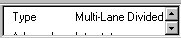 (the default is current theme). The next step is to select which fields will be used. The
Select Field to Copy Button
(the default is current theme). The next step is to select which fields will be used. The
Select Field to Copy Button  helps the User to define
from which fields of the source Feature table he would like to copy attribute values. It
introduces a new dialog
helps the User to define
from which fields of the source Feature table he would like to copy attribute values. It
introduces a new dialog 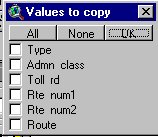 which is
populated with all available fields from the attribute source Ftab. By checking the check
Boxes against desired fields the User selects the fields which values he wants to copy.
Those fields are used by the Copy Attributes From Feature to Clipboard Tool
which is
populated with all available fields from the attribute source Ftab. By checking the check
Boxes against desired fields the User selects the fields which values he wants to copy.
Those fields are used by the Copy Attributes From Feature to Clipboard Tool  to
populate the Clipboard with the values of the feature he selects for the desired fields.
The contents of the Clipboard can be pasted with Paste Attributes Tool
to
populate the Clipboard with the values of the feature he selects for the desired fields.
The contents of the Clipboard can be pasted with Paste Attributes Tool  to
a feature or Paste Attributes to Selected Button
to
a feature or Paste Attributes to Selected Button  to all currently selected
features. If some of the fields in the clipboard are not existing in the current theme's
feature table they can be pasted with the Paste Fields Button
to all currently selected
features. If some of the fields in the clipboard are not existing in the current theme's
feature table they can be pasted with the Paste Fields Button  .
If the User wants to change some values in the Clipboard, he can do that using Edit
Clipboard Values Button
.
If the User wants to change some values in the Clipboard, he can do that using Edit
Clipboard Values Button  which opens dialog for editing
current clipboard values
which opens dialog for editing
current clipboard values 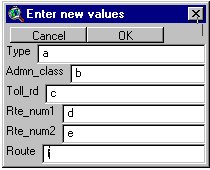 where he can input the
values which he wants to pass. May be this looks a bit confusing, but it is logical
(if you ask me).:
where he can input the
values which he wants to pass. May be this looks a bit confusing, but it is logical
(if you ask me).:- Select Source Theme
- Select fields to be copied
- Click on a feature to Populate the Clipboard with it's attributes:
- Edit Clipboard Values (if needed) with
- Paste the fields (if not existing) to the current theme's ftab:
- Now click on a feature to paste Clipboard contents to: or use
to paste it to all selected features.
Once steps 1.), 2.) and 5.) have been passed. It can be as easy
as copy from feature , paste to feature .